I tried 3 Mac dictation tools so you don't have to
I tested Wispr Flow, Spokenly and Hex on a foreign accent and technical terms like ticket IDs. Only one got it right.

You're halfway through typing a long message about a ticket, and you could have said the whole thing out loud in a fraction of the time.
You can avoid typing and save a bunch of time by saying things directly into your computer. I ran the same quick demo through three Mac dictation tools: Wispr Flow, Spokenly and Hex. With the last one, you can do this fully locally on your laptop using your own AI subscriptions, without spending an extra dime.
I've been trying to stop typing and just talk to my Mac instead, so I ran a dictation workflow through @WisprFlow, @SpokenlyApp and Hex by @anomalyco.
— Akash 🇬🇧/🇮🇳 (@thewritingdev) November 13, 2026
In the end, I ended up choosing the one that uses local models and my own AI subscriptions for post-processing the transcripts.… pic.twitter.com/P2zDPKG4u7
The test
Each tool gets the same spoken message, filler words included. It goes something like this:
So have you checked Cloudflare? Um, and uh, looking at ticket ABC-123, um, do you think that it makes changes to the database and what the delta for the time is there? Could we also, uh, ping Michael if it's more than 10%?
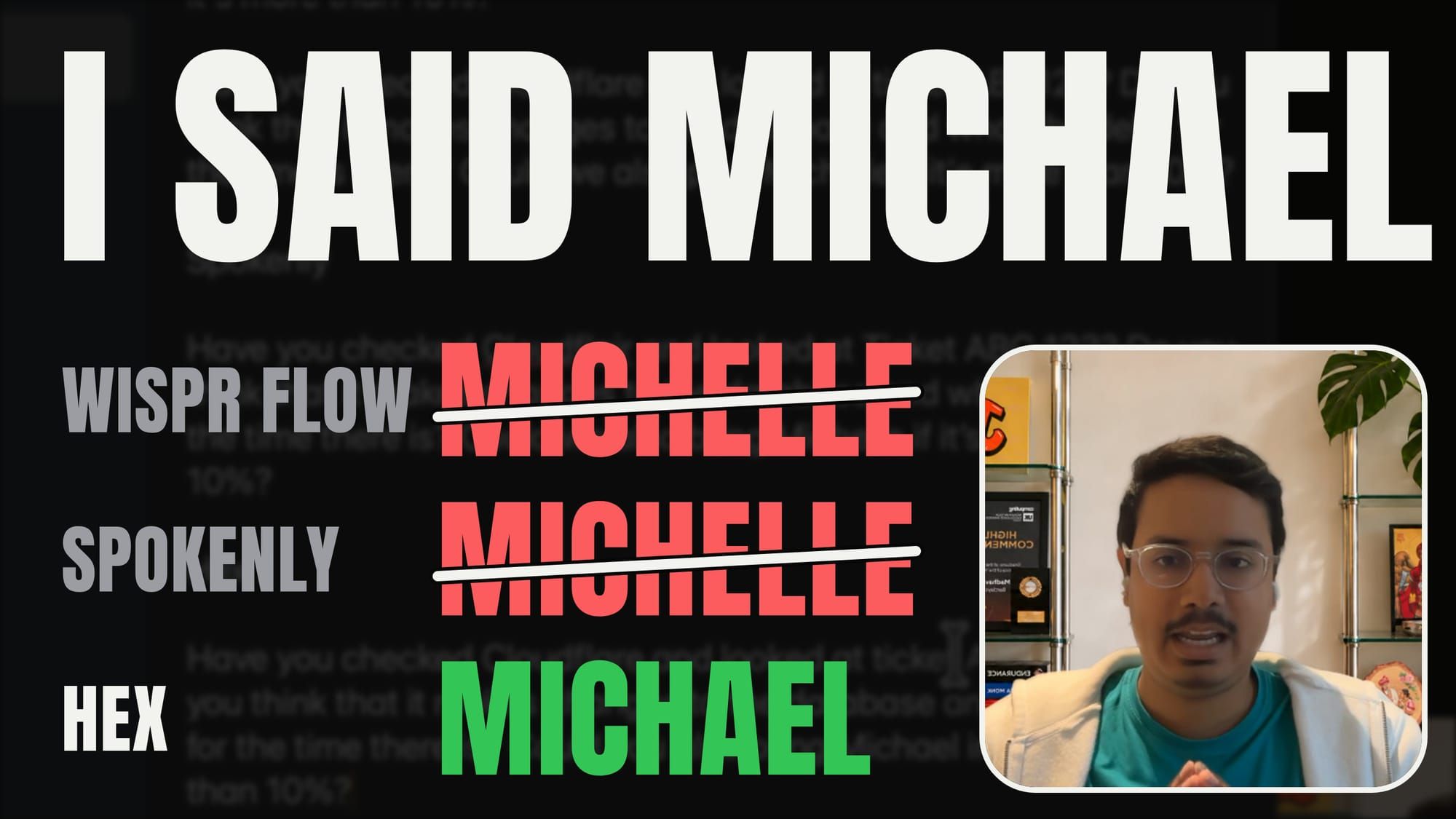
Two things are worth watching. The ticket should come out as one continuous thing, and I say Michael the way you say it in German.
Wispr Flow
The main benefit of using Wispr is not caring about the model underneath. The baseline model is genuinely strong.
It has started to figure out that if you mention a ticket, it should write the ID as a continuous thing. It also processes filler words quite well, so it gets the job done.
It might not work as well with foreign accents or foreign names. I said Michael the German way and it picked it up as Michelle instead.
Wispr does have a dictionary feature that lets you train it on the words you use. But it doesn't really have a natural language prompt feature to fine-tune how the transcript should appear after processing.
Spokenly
If you want something which gives you a bit more control, Spokenly is a better alternative.
You get access to a few more paid models for free, and of course you get more juice out of them if you're on a paid subscription. More importantly, you can bring your API keys to run your own models, or even run some models locally.
You also get different modes. I used the text cleanup mode, which removes filler words like ums and ahs from the transcript and fixes formatting and grammar without altering the core meaning.
I set it up with the default macOS model that ships with all MacBooks, and left the text cleanup mode on its default model. I think that's GPT6 Luna, which sounds about right because I haven't chosen what it should use underneath.
On the same message, it still doesn't get the name right. It does get the ticket details correct, removes the filler words and generally maintains the grammar of the core sentence.
In the AI modes you can give it a prompt to modify the transcript after processing, which Wispr can't do. The limitation is that it still doesn't use your AI subscriptions. You can add API keys, but those aren't exactly your AI subscription.
Hex
Here's where Hex by Kit Langton from the OpenCode team comes in. It's fully open source and works primarily off local models on your machine.
Similar to Spokenly, you get a couple of modes. The most important thing to know is that the post-processing mode in Hex is powered by OpenCode, which lets you bring all of your AI subscriptions directly into Hex, including Claude Code and Codex.
That's what I've got set up. Parakeet transcribes locally, and Haiku 5.5 cleans up the transcript as it goes along through my Claude Code subscription. I'd also included an instruction for the ticket, so it knows how to transcribe tickets.
I gave the message a final go, and I think it transcribes it perfectly.
Setting up Hex
Since I recorded the video, Anomaly have made a few changes to the Hex app, so how you configure it has slightly changed.
- Mic. Turn on the setting that turns off the mic while not dictating. Otherwise it drains your battery even when the computer is idle.
- Output. Click on Output, then either open file or edit with agent. Open file opens the settings file in the background.
- Prompt and model. Inside dictation processing, define your prompt in the prompt property, and change the model in there as well.
Ideally, you want your agent to do the last step for you, because a few issues might come up while you're doing it by hand.
Which one to use
Wispr Flow is the one to use if you don't want to care about the model underneath. Spokenly gives you more control and a prompt, but through API keys. Hex takes a bit more setup and runs on a local model plus the AI subscription you already have.
I thoroughly enjoy working with dictation. Try out all of these tools yourself and choose the one that works for you.